Dashboard → Edit → Design & order
- 1
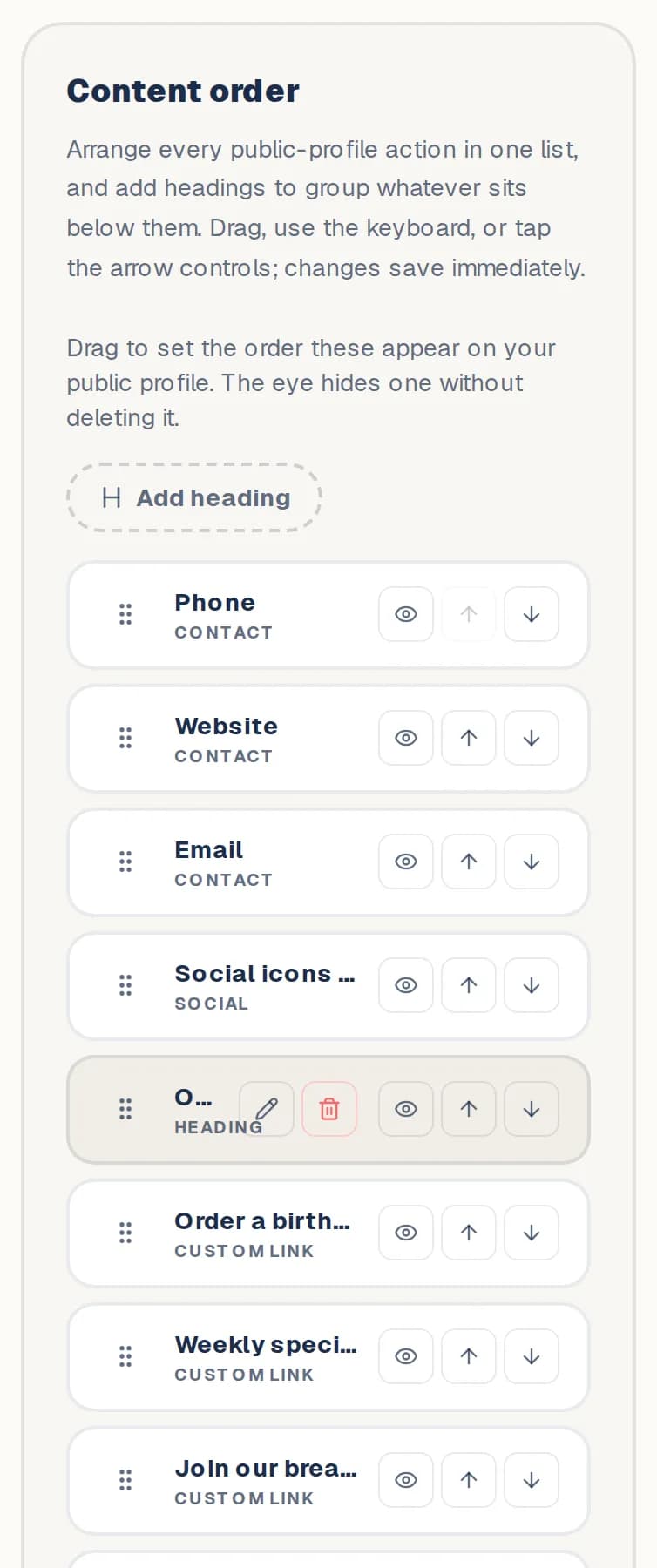
Open Design & order and find Content order.
- 2
Drag a row up or down, or use its arrows. Changes save straight away.
- 3
Tap the eye on a row to hide it from your page without deleting it. Tap again to show it.
- 4
On Location & hours, tap Map or Hours to switch just that part off.
Good to know
- Changed your mind? Tap Reset to default order.
Still stuck? Contact us.
Next: Change how your page looks